
Best HTML Editors and CSS Editors: Complete Guide for Developers
Every website is built with two core languages: HTML for structure and CSS for design. HTML decides what appears on the page, like headings, text, and images. CSS controls how it looks, from colors and fonts to layouts and spacing. Together, they form the backbone of web development.
You can technically write HTML and CSS in a basic notepad, but that approach is slow and error-prone. Modern editors make life much easier. They highlight errors, suggest code, and even show live previews of your work. Choosing the best HTML editor and the best CSS editor is important whether you are just learning or working on a professional project.
In this guide, we will explain what makes a good editor, review the top options available today, and help you decide which tool is right for your needs.
What Makes a Good HTML and CSS Editor
When choosing the best editor for HTML and CSS, there are a few things that matter most.
A good editor should be easy to use. Beginners should not feel lost, and professionals should find useful shortcuts and tools that save time. A confusing interface only slows you down.
Features are another deciding factor. Syntax highlighting makes code clearer by coloring different tags. Autocomplete suggests code while you type, which reduces mistakes. Many editors also support plugins, extensions, and version control tools like Git, which are essential for teamwork.
Performance is critical as well. The best HTML CSS editor should feel light and responsive, even when you are working with large files. Editors that freeze or crash often can be frustrating.
Community support is equally valuable. An active community creates tutorials, builds plugins, and answers questions, making it easier for both beginners and advanced users to find solutions.
Key things to look for in an HTML and CSS editor:
- Easy-to-understand interface
- Syntax highlighting and autocomplete
- Fast performance without crashes
- Plugin and extension support
- Integration with Git and other tools
- Large and active community
Visual Studio Code
Visual Studio Code (VS Code) is one of the most popular editors in the world. It is free, built by Microsoft, and offers a perfect balance between simplicity and advanced features.
Beginners like VS Code because it is easy to set up and has a clean interface. Professionals prefer it because of its wide range of extensions, integrated Git, and debugging tools. The extension marketplace is massive, with thousands of add-ons that let you customize the editor for almost any type of project.
Highlights of VS Code:
- IntelliSense for smart code suggestions
- Built-in Git and version control support
- Live Share for real-time collaboration
- Integrated terminal for running commands
- Thousands of extensions available
VS Code is lightweight but powerful. You can use it as a good HTML editor for simple pages or as a full IDE for HTML, CSS, and JavaScript for large commercial projects. That flexibility is why it is often called the best HTML CSS IDE available today.
Sublime Text
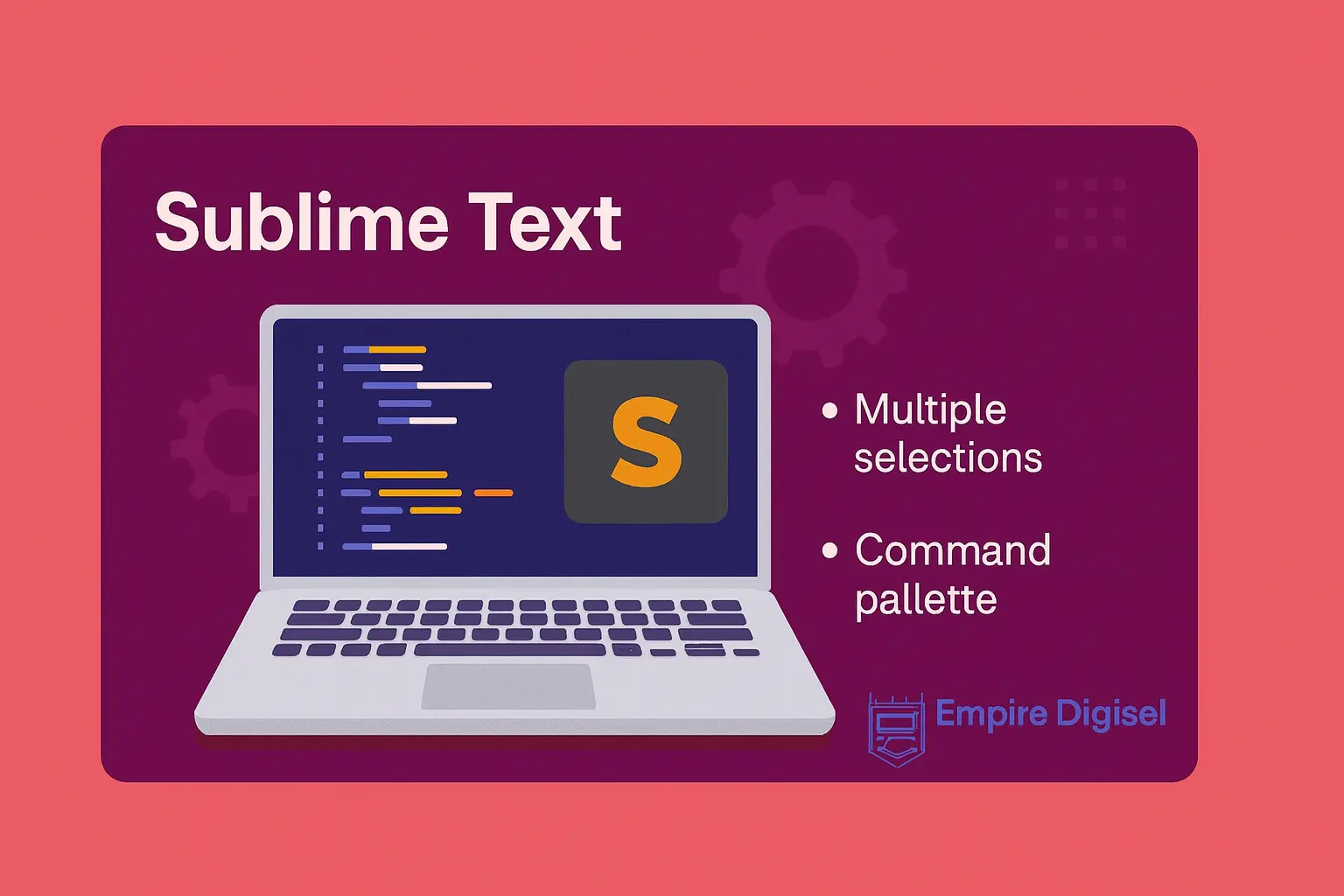
Sublime Text is famous for its speed and reliability. It opens almost instantly and handles very large files without slowing down. If you are working on demanding projects, this performance makes a big difference.
The interface is clean and distraction-free, yet it comes with powerful tools. Multiple selections let you edit many lines at the same time. The Command Palette gives quick access to functions, while Goto Anything makes moving between files effortless. Sublime also supports split editing, so you can work on two files side by side.
Key features of Sublime Text:
- Multiple selections for faster editing
- Command Palette for quick access
- Goto Anything for easy navigation
- Split editing for side-by-side work
- Plugin support through Package Control
Sublime Text is not free forever, it requires a paid license after extended use but many developers find it worth the price. It is particularly strong as a CSS editor, because it can handle large stylesheets with no lag. If speed is your priority, Sublime Text is an excellent choice.
Atom
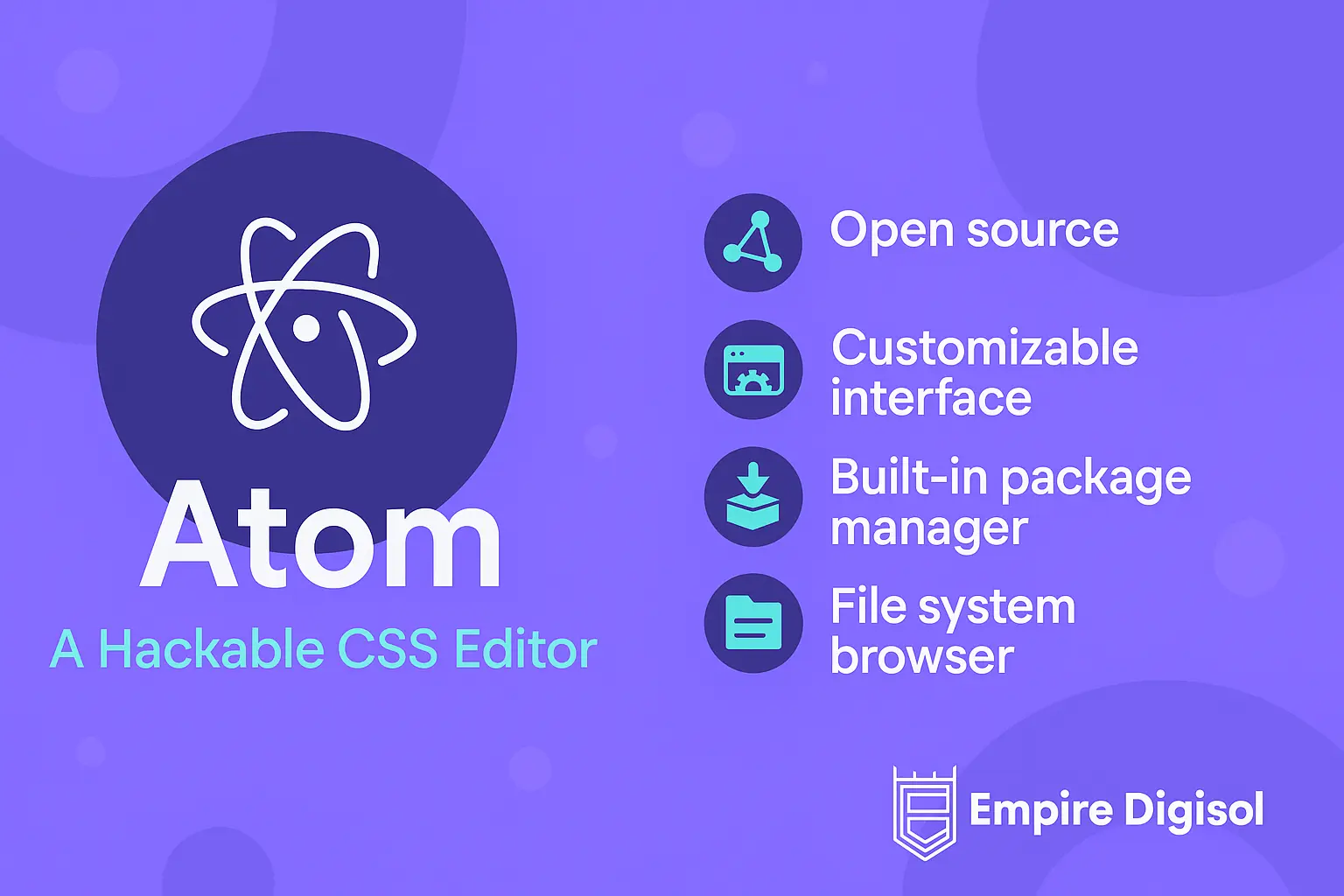
Atom created by GitHub, is known as the hackable text editor. This means you can customize it deeply to match your personal workflow. It may not be as fast as Sublime Text, but its flexibility makes it appealing.
Atom comes with features like smart autocompletion, a file system browser, and a built-in package manager. Teletype allows developers to collaborate in real time on the same file. Thousands of themes and plugins are available, so you can adjust the editor to your exact needs.
Why developers like Atom:
- Real-time collaboration with Teletype
- Built-in package manager for plugins
- Smart autocompletion
- Wide range of themes and styles
- Strong community support
For people who enjoy customizing their workspace, Atom is a good HTML editor that can be adapted for almost any type of project. It is not the fastest, but its flexibility and community make it a solid choice.
Brackets
Brackets was created by Adobe and is designed mainly for front-end developers and designers. Its focus is on helping you see results quickly while you code.
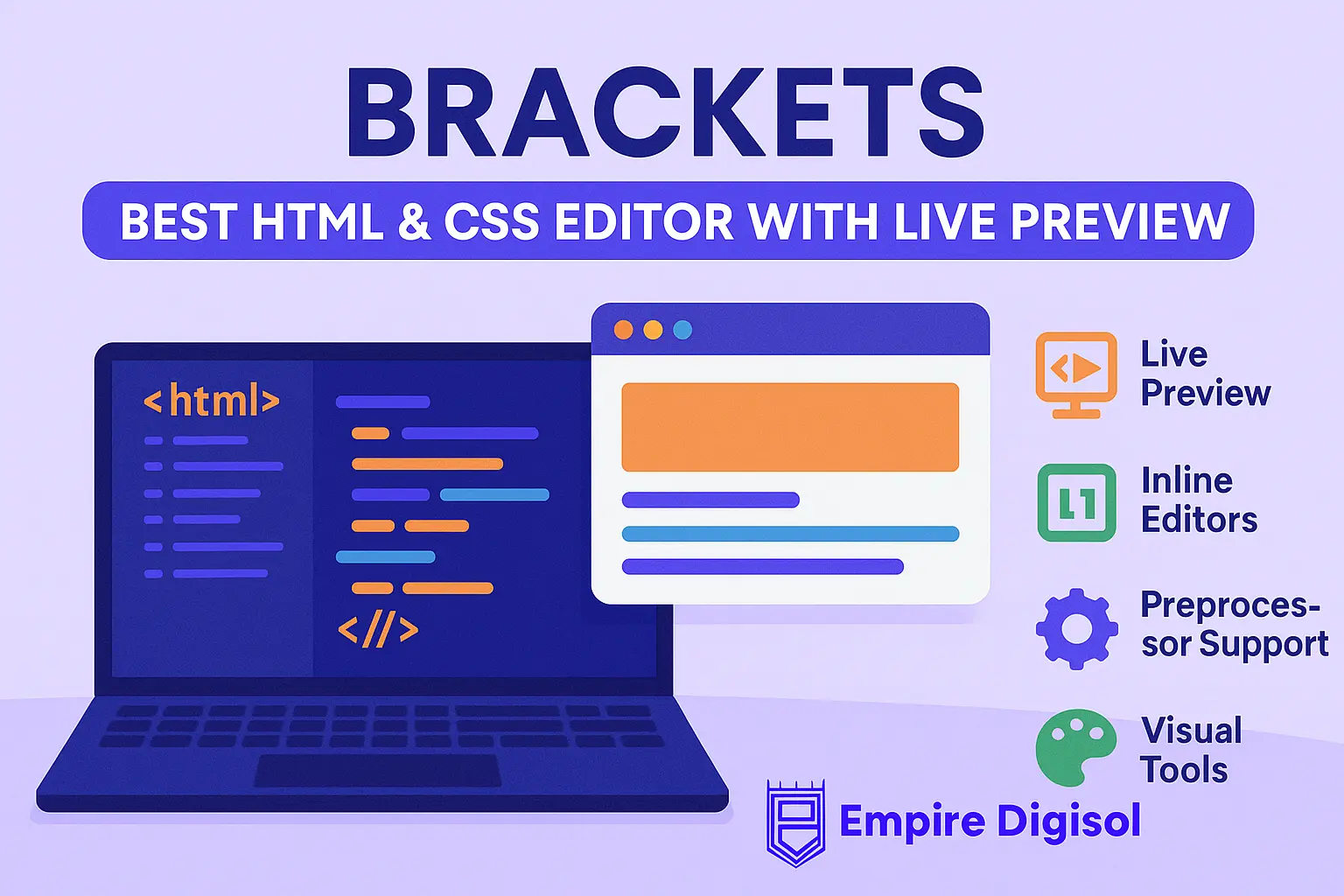
The most popular feature is Live Preview, which lets you see changes in your CSS and HTML appear instantly in the browser. This is very useful for beginners, because it shows clearly how code affects design. Brackets also include inline editors, so you can work on sections of code without switching between tabs.
Brackets stands out because of:
- Live Preview for real-time design feedback
- Inline editors for quick changes
- Preprocessor support for LESS and SCSS
- Visual design tools built in
It may not be the strongest choice for very large projects, but for design-focused work, Brackets is one of the best HTML editors with live preview.
Notepad++
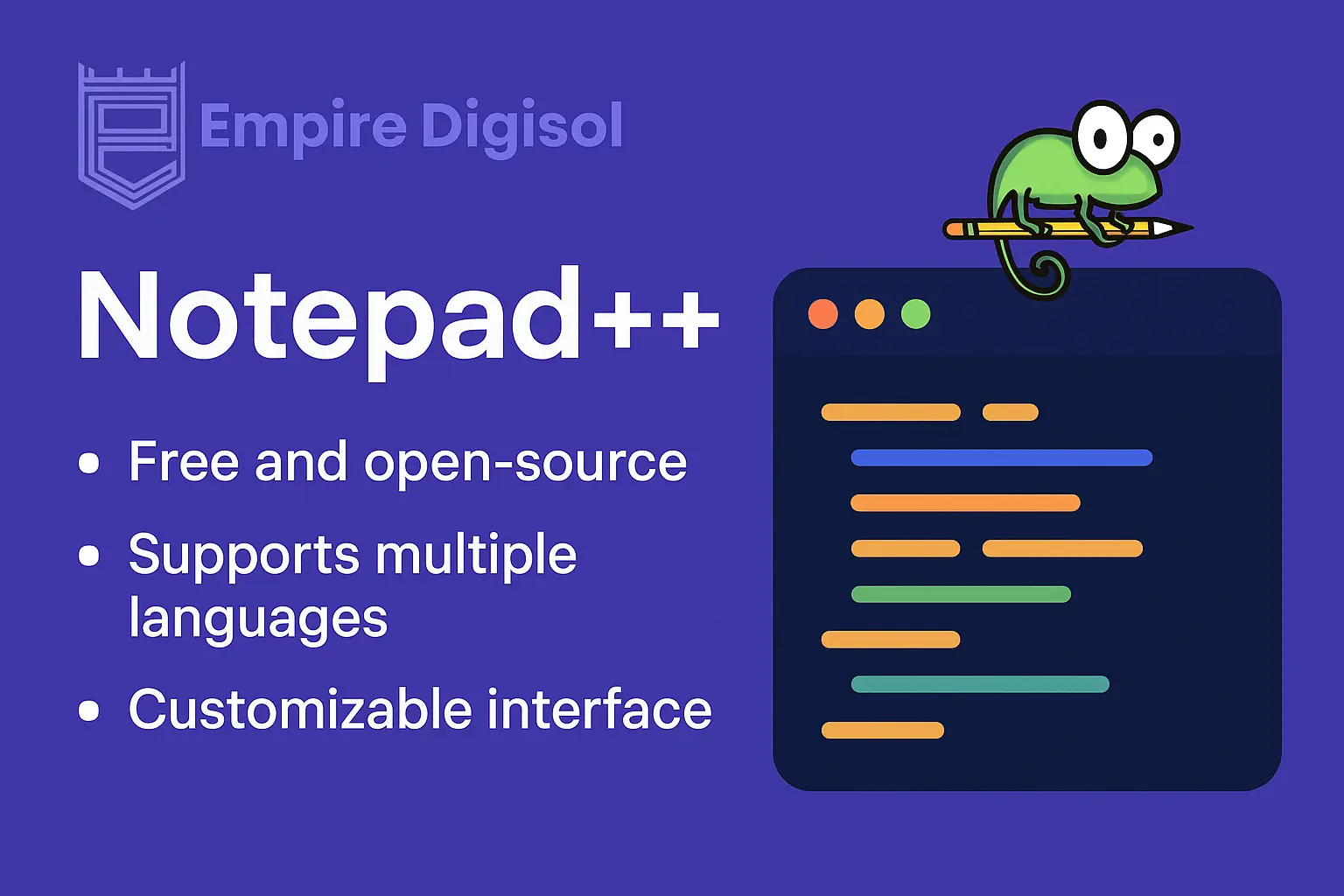
Notepad++ is one of the simplest and fastest free editors available. It runs smoothly even on older computers, which makes it popular among beginners and people who need quick solutions.
Although it looks simple, it includes useful features like syntax highlighting, autocomplete, and multi-file editing. A large selection of plugins adds extra functions, making it more versatile than it appears at first.
Why Notepad++ is still popular:
- Lightweight and very fast
- Syntax highlighting for many languages
- Autocomplete suggestions
- Multi-view editing
- Plugin support
It does not have advanced features like live collaboration or integrated debugging, but its simplicity is a strength. If you are learning or need a quick, easy HTML editor, Notepad++ is an excellent starting point.
Free vs Paid Editors
When choosing between free and paid editors, the right option depends on your project and budget.
Free editors such as VS Code, Atom, Brackets, and Notepad++ cover most needs. They are perfect for learning, small projects, and even professional work in many cases. They also have large communities that keep them updated.
Paid editors like Sublime Text and Adobe Dreamweaver add benefits such as faster performance, priority support, and advanced debugging tools. These features are especially useful for larger or commercial projects where time is critical.
To put it simply:
- Free editors work well for beginners and small to medium projects.
- Paid editors are better suited for professionals who handle complex or time-sensitive work.
Advanced Features for Professionals
Professional developers often need features beyond the basics. These advanced tools make teamwork easier and reduce the chance of mistakes.
Examples of advanced features include:
- Git integration for version control
- Built-in debugging tools
- Real-time collaboration features
- Plugins for frameworks and libraries
- Live preview and responsive testing
These functions are what turn a simple text editor into a full HTML CSS IDE. They are especially valuable for large teams working on complex websites or applications.
Cross-Browser Compatibility
Websites must look and work correctly on all major browsers, such as Chrome, Firefox, and Safari. Editors play an important role in this.
The best HTML software helps with cross-browser compatibility by:
- Highlighting errors or outdated code
- Offering live previews across browsers
- Integrating with testing tools like BrowserStack
- Supporting responsive design features
Without these checks, a site might look perfect in one browser but broken in another. Editors with built-in validation and preview tools reduce this risk and save time.
Customization and Productivity
Every developer works differently, and customization helps match the editor to your style.
Most modern editors allow you to:
- Change themes and colors to reduce eye strain
- Adjust fonts and layouts for comfort
- Create shortcuts for repetitive actions
- Use plugins like Emmet and Prettier for faster coding
- Split your workspace to edit multiple files at once
These small adjustments make the workflow smoother. Over time, they save hours of work and make coding more enjoyable.
Best Practices for Teams
When multiple people work together, editors must support smooth collaboration. Teams benefit from shared coding standards, version control, and real-time editing.
Best practices for team environments include:
- Using formatters to keep code style consistent
- Managing projects with Git integration
- Collaborating in real time with tools like Live Share
- Creating clear documentation
- Automating repetitive tasks
By following these practices, teams can avoid confusion, save time, and deliver higher-quality websites.
Conclusion
Choosing the right editor is about more than comfort. It directly affects productivity, accuracy, and website quality.
- Visual Studio Code is the most flexible and powerful option overall.
- Sublime Text is best for speed and performance.
- Atom is the most customizable editor.
- Brackets is ideal for design and live preview.
- Notepad++ is the simplest and best for beginners or quick edits.
At Empire Digisol, we use these editors every day to build reliable and visually appealing websites. By matching the right tool to the right project, developers can work faster, make fewer mistakes, and deliver better results.
FAQs
Which editor is best for beginners?
Notepad++ and Brackets are simple, free, and easy to understand.
Which editor is best for big projects?
Visual Studio Code and Sublime Text are reliable for large and complex projects.
Can one editor handle both HTML and CSS?
Yes, all modern editors support both HTML and CSS, along with JavaScript.
Are free editors enough for professional work?
Yes. VS Code, for example, is free but powerful enough for professional use. Paid editors simply add more performance and support.
Why is live preview important?
It shows design changes instantly, saving time and reducing errors.